SpeakForge – Custom Discord Speaker Overlay for OBS (Animated, Per-User, Early Release)
A downloadable tool for Windows
This is an early version — feedback is welcome!
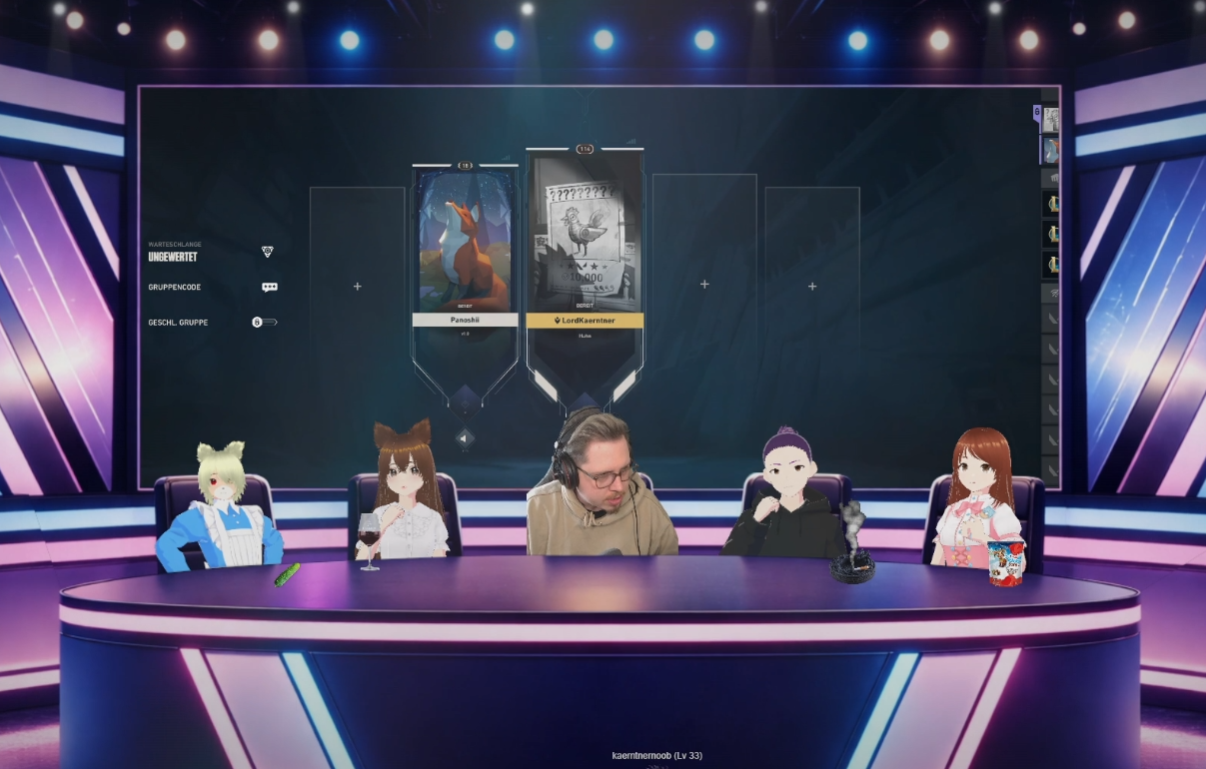
SpeakForge is a standalone desktop tool that lets you create fully customizable Discord speaker overlays for OBS.
It connects directly to Discord StreamKit and transforms voice activity into animated, per-user visuals — perfect for streamers, VTubers, podcasts, and gaming content.
🎯 Features
- 🎤 Real-time voice detection from Discord StreamKit
- 🧑🤝🧑 Multiple users support with individual settings
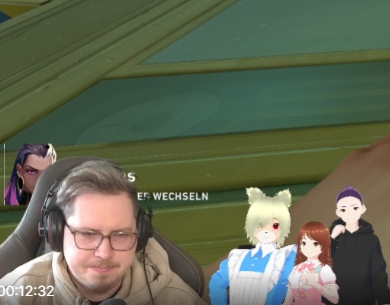
- 🖼 Custom avatars for idle and speaking states
- 📏 Adjustable size, scale, and bounce animation
- 🎚 Optional grayscale and visual effects
- 🎮 Global hotkeys to toggle users on/off
- 👁 Auto-hide users when they leave the voice channel
- 🧩 Simple setup with one OBS browser source per user
- ⚙️ Built-in HUD configuration panel
- 🐞 Debug panel to monitor live voice detection
🧪 How it works
- Generate your Discord overlay via StreamKit
- Paste the URL into SpeakForge
- Create users and match them to Discord names
- Add the generated overlay File into OBS
- Done — your avatars now react in real time
🖥 OBS Setup
Use a browser source Enable Local File.
http://127.0.0.1:3000/overlay/your-user
Each user gets their own overlay File.
⚠️ Requirements
- Discord (voice chat)
- OBS Studio
- SpeakForge must be running in the background
💡 Use Cases
- 🎮 Streaming with friends
- 🎙 Podcasts and group recordings
- 🧑🎤 VTubing setups
- 🎥 Content creation with voice reactions
❤️ Made by
Kärntnernoob
Windows may show a SmartScreen warning on first launch because SpeakForge is currently an unsigned indie application. Click “More info” → “Run anyway” to start it.
📖 How to Use SpeakForge
🚨 Important Notice
When launching SpeakForge, Windows may show a security warning (SmartScreen).
This is normal.
SpeakForge is developed by an independent developer (Kärntnernoob) and is not code-signed.
Because of that, Windows cannot verify the publisher.
👉 To run the app:
Click “More info”
Then click “Run anyway”
🎤 SpeakForge
SpeakForge is a desktop tool that creates fully customizable Discord voice overlays for OBS using StreamKit.
It allows you to assign avatars to users, animate them when speaking, and control visibility in real time.
🚀 Quick Setup Guide
1. Start SpeakForge
Launch the application.
The configuration HUD will open automatically.
2. Get your Discord StreamKit URL
Open:
👉 https://streamkit.discord.com/overlay
Select:
your server
your voice channel
Customize if needed
Copy the generated URL
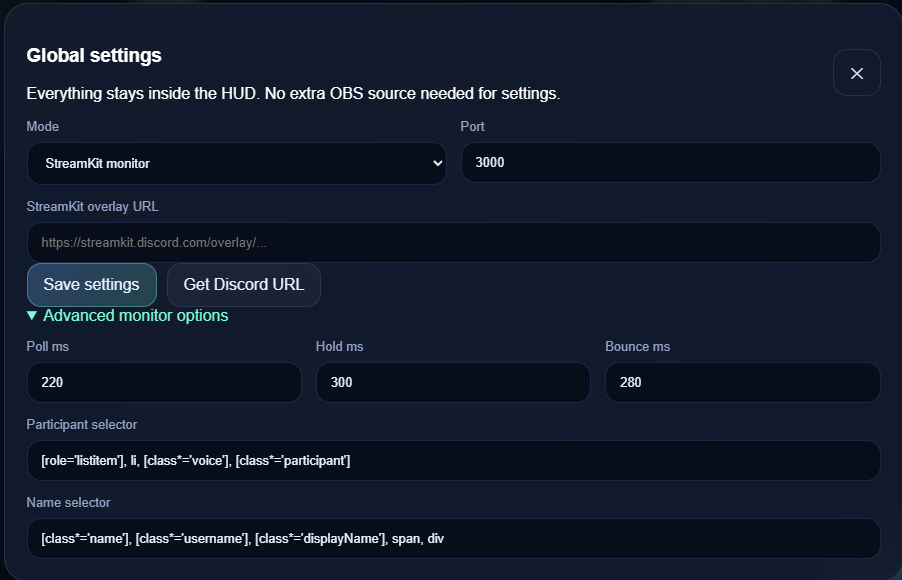
3. Paste URL into SpeakForge
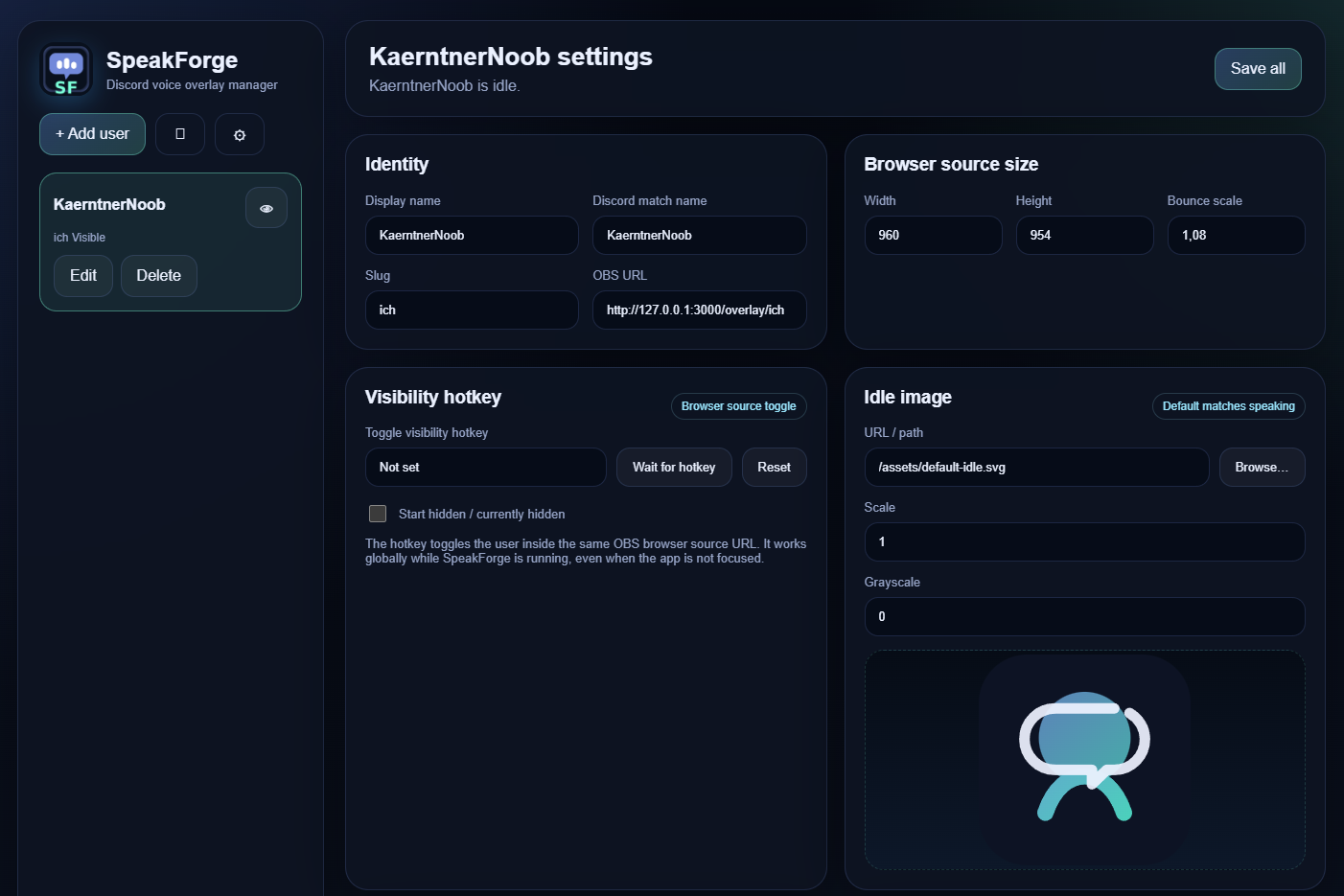
Click the ⚙️ Settings icon
Paste your StreamKit URL
Click Save
4. Create and configure users
Click Add User
Select a user from the list
Configure:
Required:
Discord Match Name
→ must exactly match the name shown in StreamKit
Optional:
Display Name
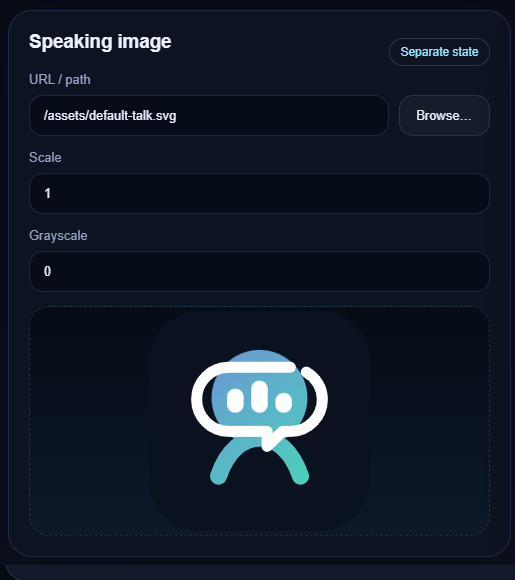
Idle Image
Speaking Image
🎨 Default Images
SpeakForge includes default images:
/assets/default-idle.svg
/assets/default-talk.svg
These are pre-filled and work out of the box.
🧩 OBS Setup (IMPORTANT)
SpeakForge uses local OBS files for maximum stability.
Steps:
Open OBS
Add a Browser Source
Enable:
✅ Local file
Select file from:
SpeakForge OBS Sources\your-user.html
Example:
SpeakForge OBS Sources\default.html
Set resolution:
Width: 960
Height: 954
🎮 How it works
🎤 Speaking → avatar animates
😐 Idle → idle image
❌ Not in voice channel → avatar hidden
🎹 Hotkeys
You can assign a global hotkey per user:
Click Wait for hotkey
Press your key combination (e.g. Ctrl+Shift+1)
Click Save all
👉 Hotkeys toggle avatar visibility
⚙️ Global Settings
Save StreamKit URL
Get Discord Overlay URL
Reset application to factory settings
🔄 Reset to Factory Settings
Use the Reset button in Global Settings to:
remove all users
clear all images
reset configuration
restore default values
⚠️ This cannot be undone.
🐞 Debug Mode
Click the Debug icon to inspect:
StreamKit connection
detected users
speaking activity
matching results
⚠️ Important Notes
SpeakForge must be running while using OBS
OBS loads overlays via local files
Discord names must match exactly
If something doesn't update, restart SpeakForge
💡 Tips
Use PNG images with transparency
Keep idle and speaking images clearly different
Use hotkeys for quick control during streams
❤️ Credits
Developed by
Kärntnernoob
🚀 Status
This is an early version.
Feedback is welcome and helps improve the tool.
Download
Click download now to get access to the following files:
Development log
- Work in Progress -Apr 20, 2026
- UPDATE 2026-04-07Apr 07, 2026
- Update 2026.04.05Apr 05, 2026
- UPDATE 2026.03.31Mar 31, 2026
Leave a comment
Log in with itch.io to leave a comment.